
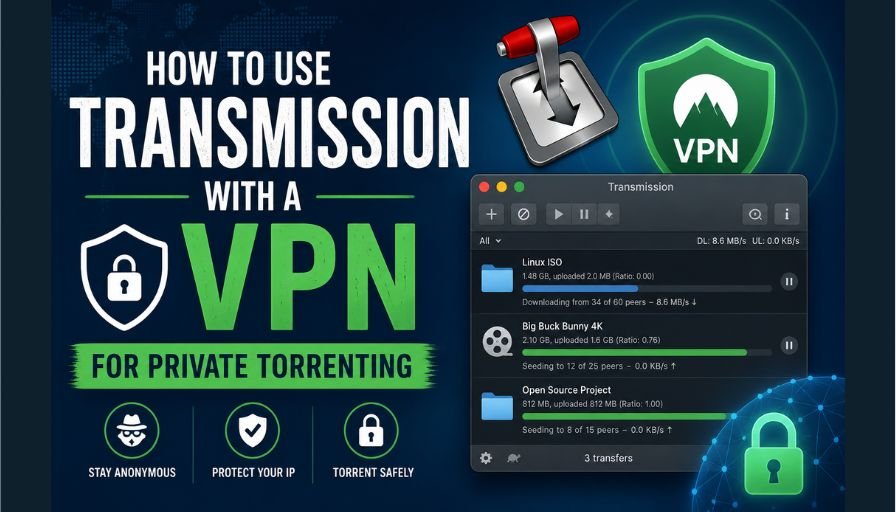
Transmission is one of the most popular torrent clients available, known for being lightweight, open source, and easy to use. But without a VPN, every torrent you download exposes your real IP address to anyone connected to the same swarm. Pairing Transmission with a VPN keeps your downloads private and protects you from ISP throttling.
This guide explains the best ways to set up a VPN with Transmission, which VPN providers work best, and how to make sure your IP is never accidentally exposed.
Why Use a VPN with Transmission?
- Hide your IP address from other peers in the torrent swarm
- Prevent ISP throttling on torrent traffic
- Avoid copyright notices from your internet provider
- Encrypt your traffic so your ISP cannot see what you are downloading
- Access torrent sites that may be blocked in your region
Three Ways to Run Transmission with a VPN
Method 1: System-Wide VPN (Simplest)
The easiest approach is to connect a VPN on your device at the system level, then run Transmission as normal. All traffic, including Transmission, routes through the VPN automatically.
- Works with any VPN provider
- No special configuration needed in Transmission
- If the VPN disconnects, your real IP may be exposed briefly
- Use a VPN with a built-in kill switch to prevent this
This method is fine for casual users but not ideal for those who need guaranteed protection at all times.
Method 2: Bind Transmission to the VPN Network Interface
This is the most reliable method for desktop setups. You configure Transmission to only send traffic through the VPN network interface. If the VPN drops, Transmission simply stops working rather than leaking your real IP.
How to bind Transmission to a VPN interface:
- Connect to your VPN and note the interface name (usually
tun0for OpenVPN orwg0for WireGuard) - Open Transmission and go to Preferences. Network
- In the field labelled Use these IP addresses, enter the VPN IP address assigned to your interface
- Save and restart Transmission
On Linux you can find your VPN IP by running ip addr show tun0 or ip addr show wg0 in the terminal.
Method 3: Docker with Gluetun (Best for Unraid or Home Servers)
If you run Transmission on a home server or NAS, the cleanest solution is to run it inside Docker with Gluetun handling the VPN. All Transmission traffic is forced through the VPN container, with a built-in kill switch that stops all traffic if the VPN drops.
- Works on Unraid, TrueNAS, Synology, and any Docker host
- Rock-solid kill switch built in
- Supports most major VPN providers
- Requires basic Docker knowledge to set up
Best VPN Providers for Transmission
| VPN Provider | Torrenting Allowed | Kill Switch | WireGuard | Price/month |
|---|---|---|---|---|
| Mullvad | Yes, all servers | Yes | Yes | ~£4.50 |
| Private Internet Access | Yes, all servers | Yes | Yes | ~£2.50 |
| ProtonVPN | Yes, P2P servers | Yes | Yes | ~£4–8 |
| NordVPN | Yes, P2P servers | Yes | Yes | ~£3–5 |
| IVPN | Yes, all servers | Yes | Yes | ~£5–6 |
Mullvad and Private Internet Access are the most commonly recommended providers for Transmission users due to their strong no-logs policies and full WireGuard support.
Port Forwarding with Transmission and a VPN
Port forwarding improves your download speeds by making you connectable to more peers. Some VPN providers support this, others do not.
- Supports port forwarding: Mullvad (via app), Private Internet Access, ProtonVPN (paid plans), IVPN
- Does not support port forwarding: NordVPN, ExpressVPN, Surfshark
To use port forwarding in Transmission, go to Preferences. Network and enter the forwarded port number provided by your VPN app. Make sure the port matches on both sides.
How to Check Your VPN Is Working with Transmission
Before downloading anything, verify your VPN is active and Transmission is using it:
- Connect to your VPN
- Visit a site like ipleak.net or browserleaks.com/ip in your browser
- Check that the IP address shown matches your VPN server, not your home IP
- Open Transmission and add a test torrent (a legal Linux distro works fine)
- Check the peers list in Transmission. your visible IP should be your VPN IP
Frequently Asked Questions
Does Transmission have a built-in kill switch?
No. Transmission itself does not have a kill switch. You need to either use a VPN app with a kill switch enabled, bind Transmission to the VPN interface manually, or use a Docker setup with Gluetun which handles this automatically.
Can I use a free VPN with Transmission?
Free VPNs are generally not recommended for torrenting. Most have data caps, slower speeds, and many explicitly ban torrent traffic in their terms of service. A paid provider like Mullvad costs as little as £4.50 per month and is worth it for the reliability alone.
Will a VPN slow down my Transmission downloads?
There is usually a small speed reduction due to encryption overhead, but with a fast WireGuard-based VPN the difference is minimal. Many users report no noticeable impact on download speeds.
Is torrenting with a VPN legal?
Using a VPN is legal in most countries. Whether the content you download is legal depends entirely on the specific files and your local laws. A VPN does not make illegal downloading legal, it simply adds a layer of privacy to your connection.
What is the best Transmission VPN setup for a NAS or home server?
The Docker plus Gluetun approach is the most reliable for home servers. It provides a guaranteed kill switch, supports most VPN providers, and requires no configuration changes inside Transmission itself once set up.